

Uxento Vision
This part of the documentation will explain what Uxento Vision is.
Uxento Vision is an all in one alpha hub for users which includes a:
- CA Tracker
- X Tracker
- DEX Tracker
- Streamflow Lock Tracker
- Truth Social Tracker
- News Feed
- Instagram Tracker
- Telegram Tracker
all delivering the fastest, lowest delay results possible!
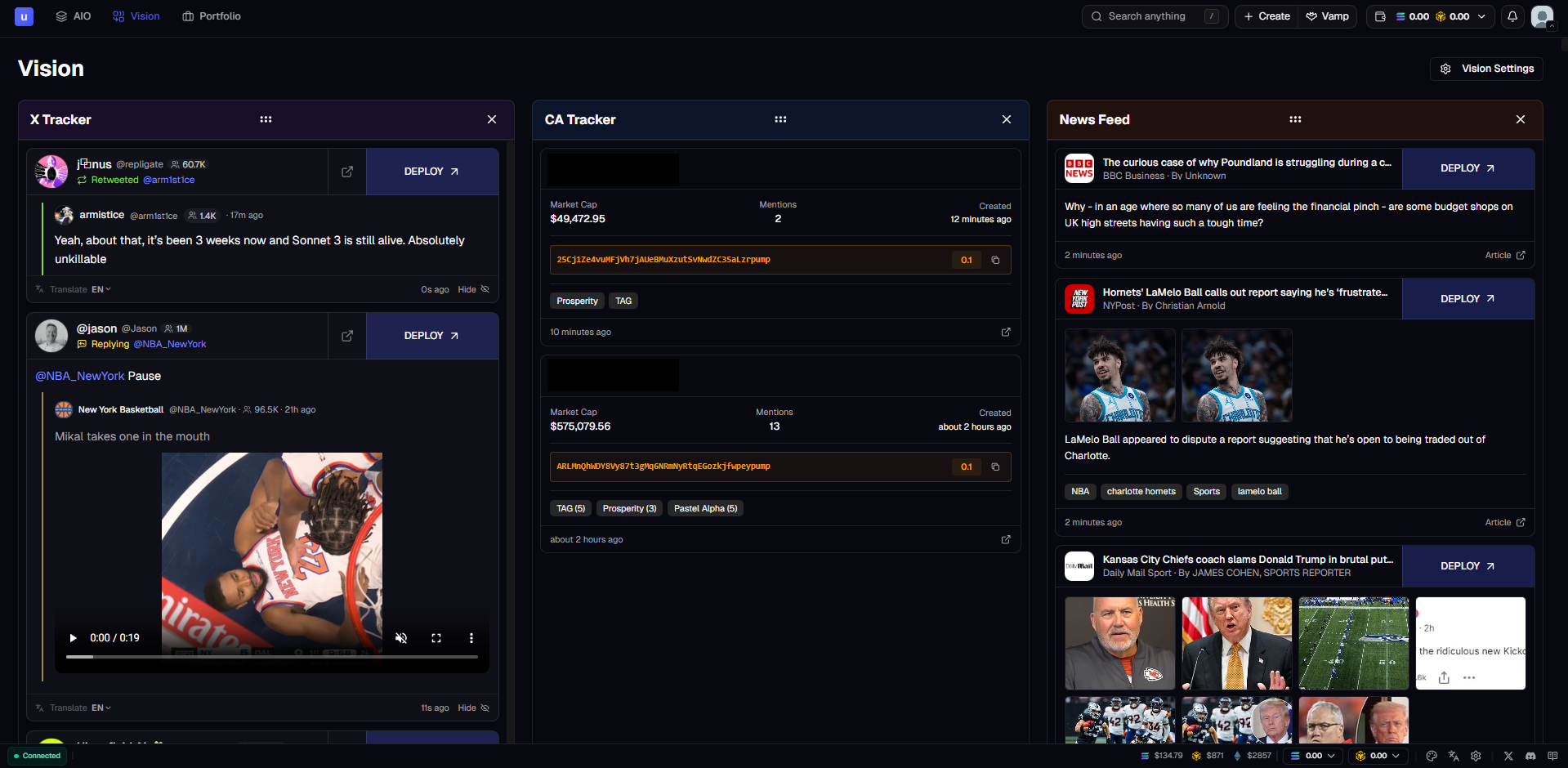
Uxento Vision features a range of resources making it an all-in-one free trenching tool.
How to access Uxento Vision:
Section titled “How to access Uxento Vision:”To access Uxento Vision via uxtension, click on the ‘Rocket’ icon when opening the uxtension extension on your toolbar.
You may also access Uxento Vision without needing the uxtension extension downloaded via this link: https://app.uxento.io/login
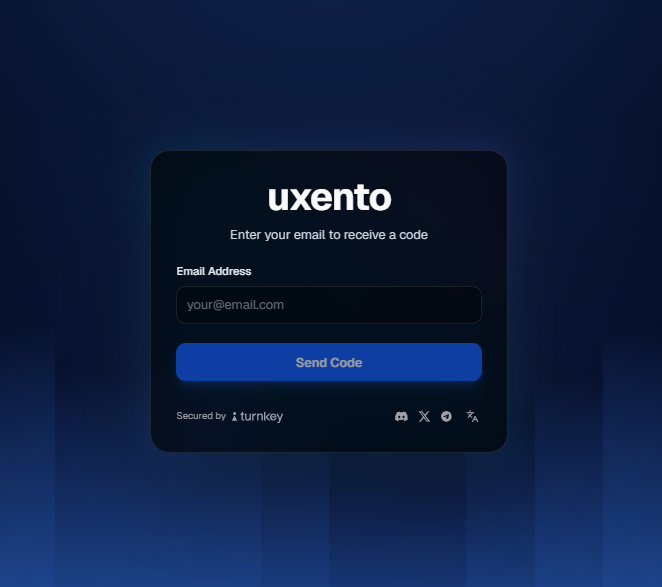
Enter Your Email to Receive a Code
Either option will bring you to this page where you can register/sign-in to an account via your email. uxento is secured by Turnkey, an industry leader in privacy and security. Follow the prompts for login until you’re welcomed to the Uxento AIO Feed and can begin enjoying your new trading experience.
Tracker Cards:
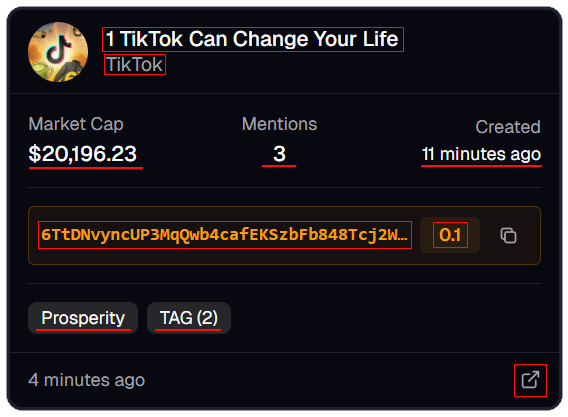
Section titled “Tracker Cards:”As alpha filters into Uxento Vision, they will be displayed as easy to view cards with relative information about the alpha being received, in the case of a coin your tracker card will display:
- contract address
- market cap
- when the coin was created
- when the coin was called
- which groups the coin was called in / how many mentions
- and a button that takes you directly to the coin’s page on Axiom
CA Tracker:
Section titled “CA Tracker:”Uxento Vision’s CA tracker detects and displays any SOL/BNB contract addresses posted within any of the sourced alpha groups. Click here to learn more about the CA Tracker.
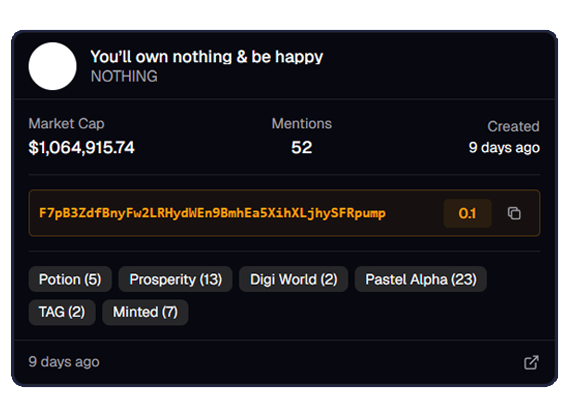
You may also execute trades on detected contract addresses directly from the CA Tracker by pressing the ‘Trade’ button to launch the uDev Trade Panel. To configure presets for quick trades on the CA tracker, you can do so via the Contract Addresses panel within the User Settings.
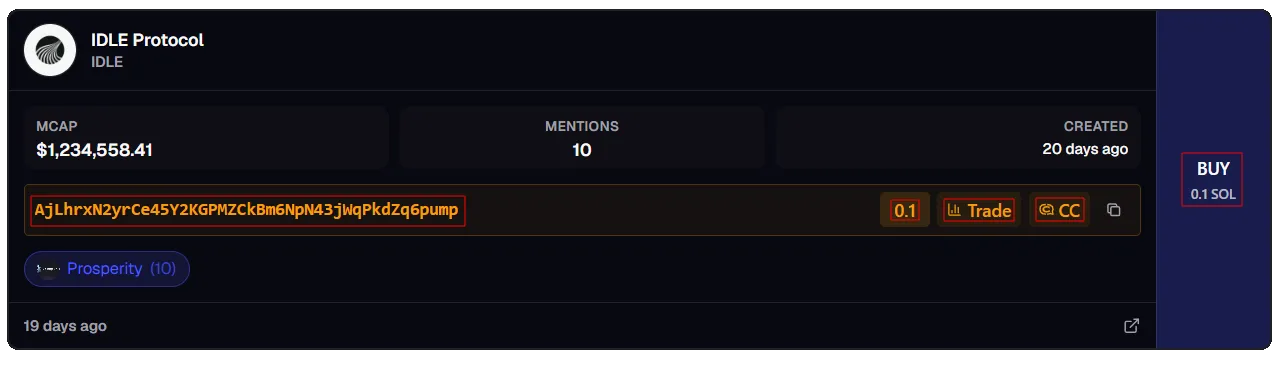
Use the shortcuts to quickly perform actions from your Tracker
Settings:
Section titled “Settings:”There are multiple ways to access the Settings panel:
- The drop-down menu under your Profile.
- The Settings/Cog Icon in the bottom right of your page.
- The Settings Tab in the top right of any selected feed (which will take you to the settings for that specific feed.)
Within the Settings tab are a number of different panels that define and determine specific parameters relative to whichever feed/tool you’re trying to customize, these are:
Tracker Settings
Trackers
Feed Accounts
Notifications
Keywords
Pins & Tags
Appearance
User Settings
Transactions
Auto-Sniper
Contract Addresses
Quick Deploy
Post-Deploy
Whitelist-Accounts
Double-Click
Keybinds
Earnings
Metadata
Video Guides:
Section titled “Video Guides:”If you prefer to learn via video tutorial, all throughout uxento are embeds to watch tutorials for any specific tool. You can view these by clicking the Question Mark icon next to any relevant tool or setting with a video guide available. Video Guides are also embedded within this guidebook in relevant sections.

Just click the Question Mark next to any relevant too to bring up the video guide
Filter Groups/ Trackers:
Section titled “Filter Groups/ Trackers:”You can filter which groups/trackers you do and don’t want to see using the Vision Settings, or global settings button/s.
Vision Settings Button
When in the settings panel, navigate to the Trackers/Feed Accounts panel and adjust your feed as desired.
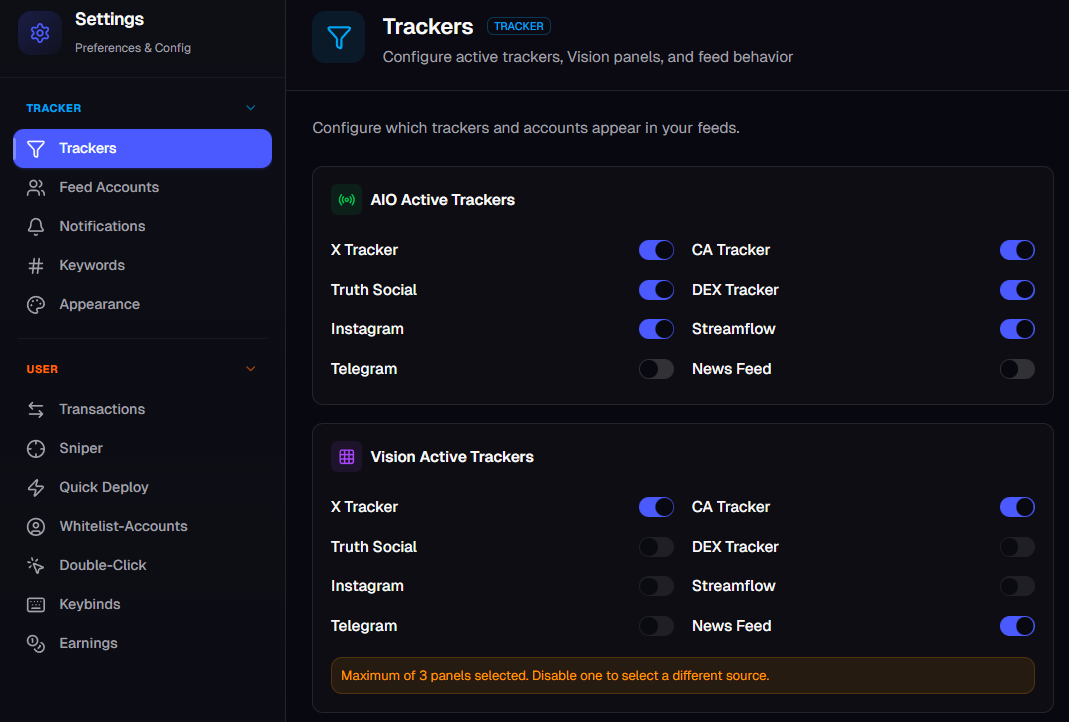
Uxento Vision allows for up to 3 trackers to be selected at once, to view more enable Uxento AIO.
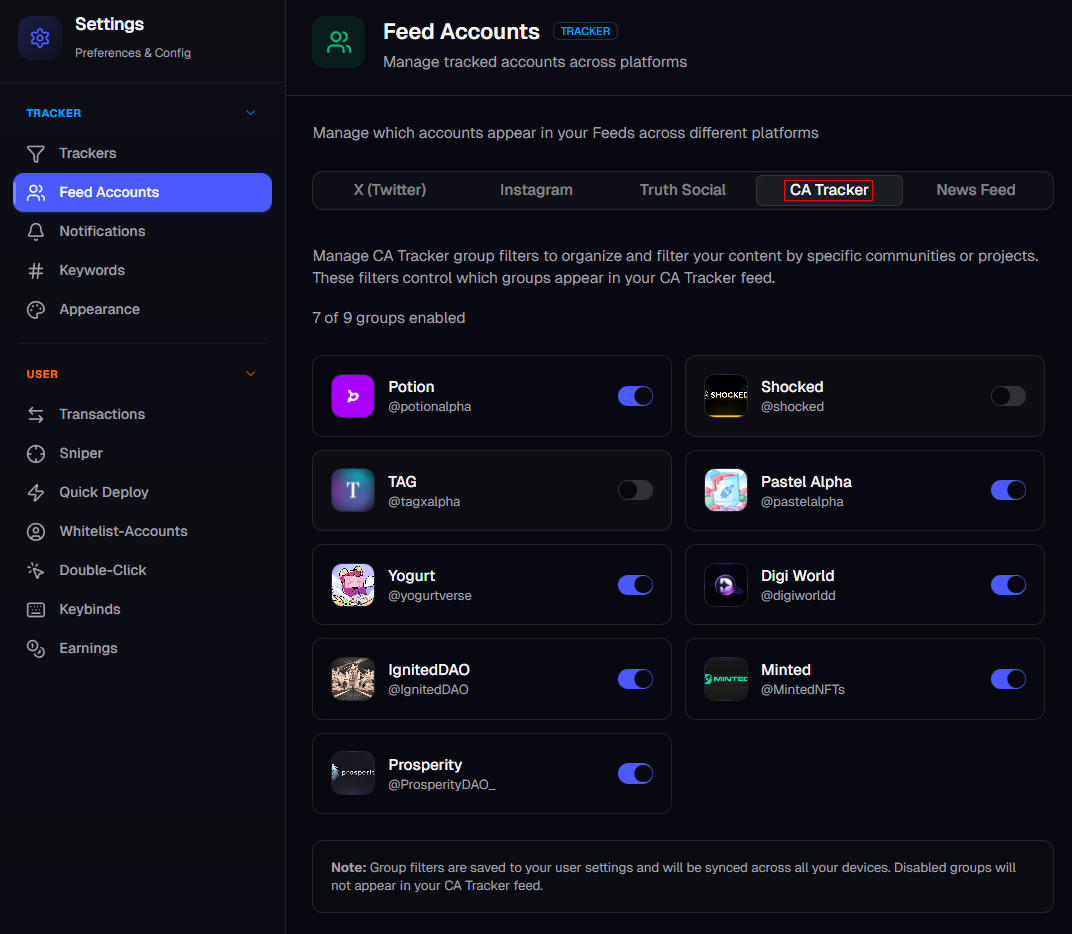
Adjust Alpha Groups via the Feed Accounts Panel
X Tracker:
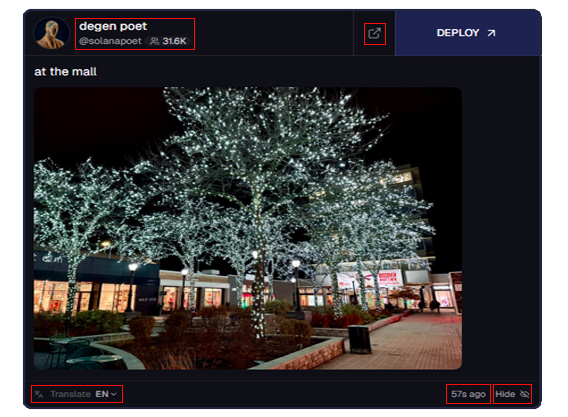
Section titled “X Tracker:”uxento offers one of the fastest, no delay X trackers providing a feed of over 1000 accounts to stay ahead of trending discussions.
The X tracker scrapes for real time data fetching posts, replies, likes, follows, profile changes and more.
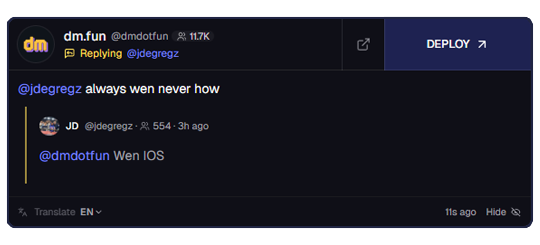
X Tracker Card
Streamflow Lock Tracker:
Section titled “Streamflow Lock Tracker:”Within Uxento Vision is a handy Streamflow Lock Tracker which provides data of token locks in real-time.
Streamflow Tracker Cards contain a range of information including the amount/percentage of token locked, how long until tokens unlock, the permissions of the locking contract as well as a ‘View Contract’ button to easily view the contract in a new tab.
Truth Social Tracker:
Section titled “Truth Social Tracker:”Uxento Vision also contains the fastest Truth Social Tracker, providing a real-time, zero delay feed of posts from tracked Truth Social Accounts.
If you would like to request any other accounts to be added to the Truth Social Tracker, simply open a ticket within the Uxento Discord Server and let us know!
DEX Tracker:
Section titled “DEX Tracker:”Uxento Vision also comes complete with a DEX Tracker to stay alert when the DEX is paid across any Pump/Bonk token in real time.
Tracker Cards in the DEX Tracker display the coin’s ticker, CA and DEXScreener Banner as well as any handy links you may navigate to for further information on the token.
Dex Predict:
Section titled “Dex Predict:”In addition to the DEX Tracker, you may also use the DEX Predict Tracker to catch tokens the moment a paid DEX Screener promotion lands, often seconds before the listing goes live. (The payment going through is not 100% guaranteed but is often a positive indicator)
News Feed:
Section titled “News Feed:”Stay on top of breaking news and trending discussions with uxento’s curated News Feed. Much like the above offered trackers, News Feed allows you to focus on only posts from certified news outlets allowing you the possibility to front run news tweets by minutes, even hours.
The News Feed can be filtered via the Settings button to exclude/include certain predetermined accounts.
Charity Tracker:
Section titled “Charity Tracker:”Keep up to date with alerts on Charities as they go live via the Charity Tracker Feed supported by donate.gg, complete with one-click deploy.
Filter Tracked X Accounts:
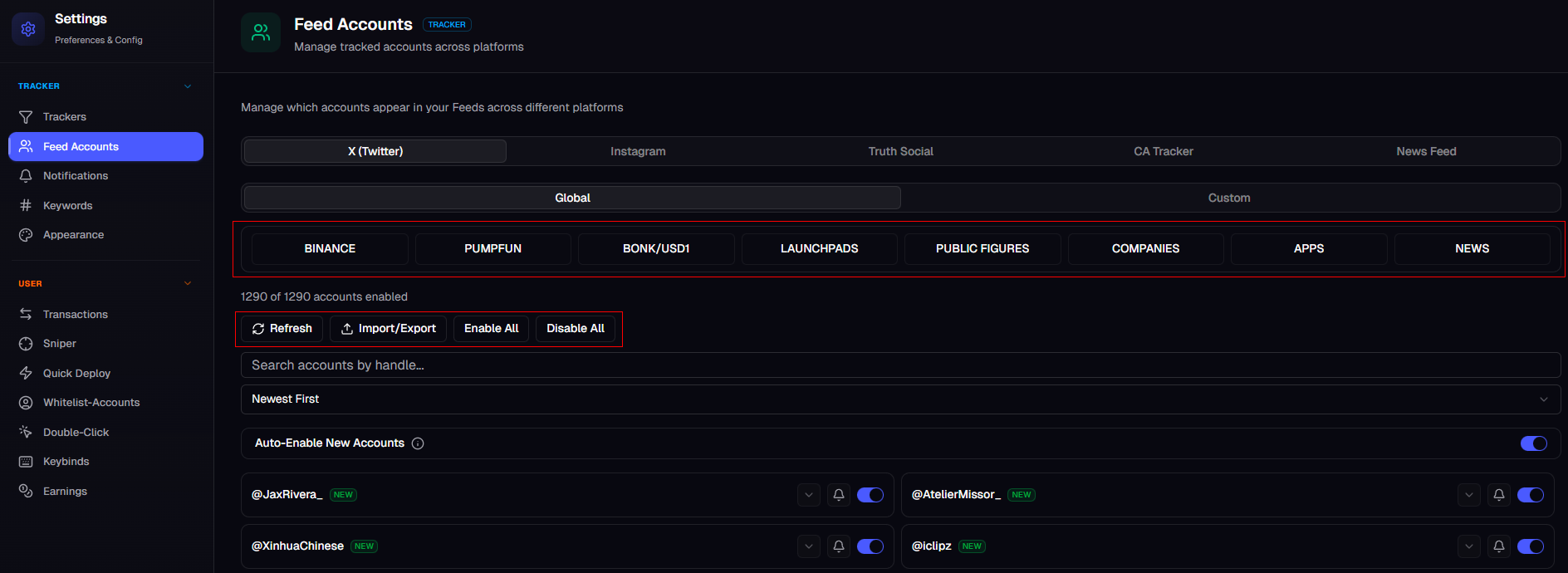
Section titled “Filter Tracked X Accounts:”The same way that you can filter groups and trackers, you are able to filter out tracked X accounts per your focus. Simply navigate to the Feed Accounts panel in the Settings page and find X Account Filters to adjust which accounts you wish to track.
X Accounts are categorized within 8 groups:
Binance
Pumpfun
Bonk/USD
Truth Social
Public Figures
Companies
Apps
News
You can adjust per category which accounts you wish to track.
You may also use the quick buttons located in the top right of the pane for a range of quick actions:
Enable All: Enable All Tracked Accounts
Disable All: Disable All Tracked Accounts
Enabled First: Display Enabled Accounts First (In List)
Refresh: Refresh List
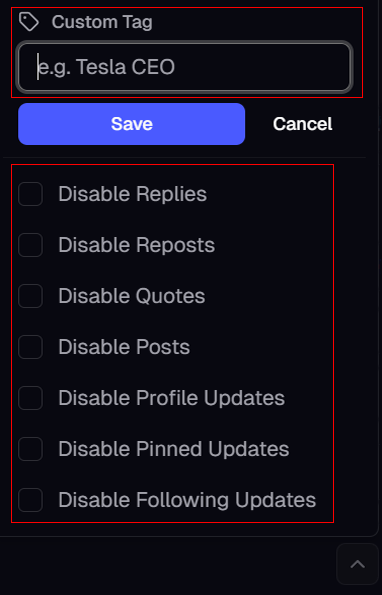
Within this panel you may also customize Account Filters (the type of notifications Uxento Vision tracks) per account. Simply click the drop-down arrow next to any account and enable any account filters, as well as add Custom Tags to any user for better visibility of high-priority accounts.
Track Custom X Accounts:
Section titled “Track Custom X Accounts:”You may also add custom X accounts after launching at least 1 coin via uDev. To add custom accounts, simply click ‘Custom’ and add any username to track. The more coins you deploy with uDev, the more custom accounts you may add to your X tracker.
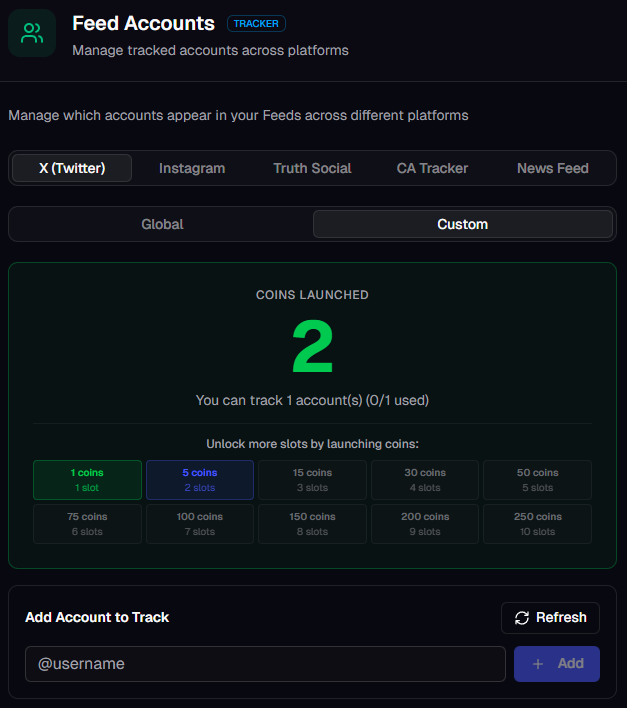
Add Custom X Accounts by launching coins with uDev
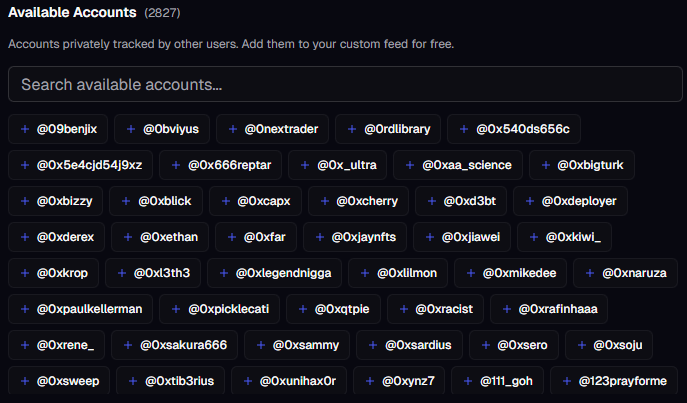
While you need to launch at least 1 coin via uDev to add your own custom accounts; you may track any custom account already added to personal trackers by other users. To do so, simply access the ‘Custom’ tab in the Feed Settings panel and navigate to the bottom of the page where you will find a list of available accounts being privately tracked by other users. Add any of these accounts to your tracker, for free - without the need of launching coins.
Filter Tracked Social Accounts:
Section titled “Filter Tracked Social Accounts:”As with the above, you may also filter tracked accounts from Truth Social. Simply navigate to the settings page and find Truth Social Filters under the Feed Accounts pane.
Filter Tracked Instagram Accounts:
Section titled “Filter Tracked Instagram Accounts:”As with the above, tracked Instagram accounts may also be filtered as desired. Simply navigate to the settings pane and find Instagram Filters under the Feed Accounts pane.
To learn more about filtering trackers efficiently you can watch the below video:
Uxento AIO (Swap Feeds):
Section titled “Uxento AIO (Swap Feeds):”Uxento AIO combines all of the above trackers into one feed.
By default, Uxento AIO is displayed to provide the most compact experience possible, but if you need to change between Vision/AIO you can do so via the dropdown under the Tracker button in the tools panel located at the top of your uxento homepage.
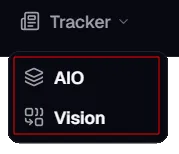
Swap Trackers
AIO also features a ‘Popout’ button that allows you to open your feed in a new re-sizeable window to allow for a more efficient display of information.
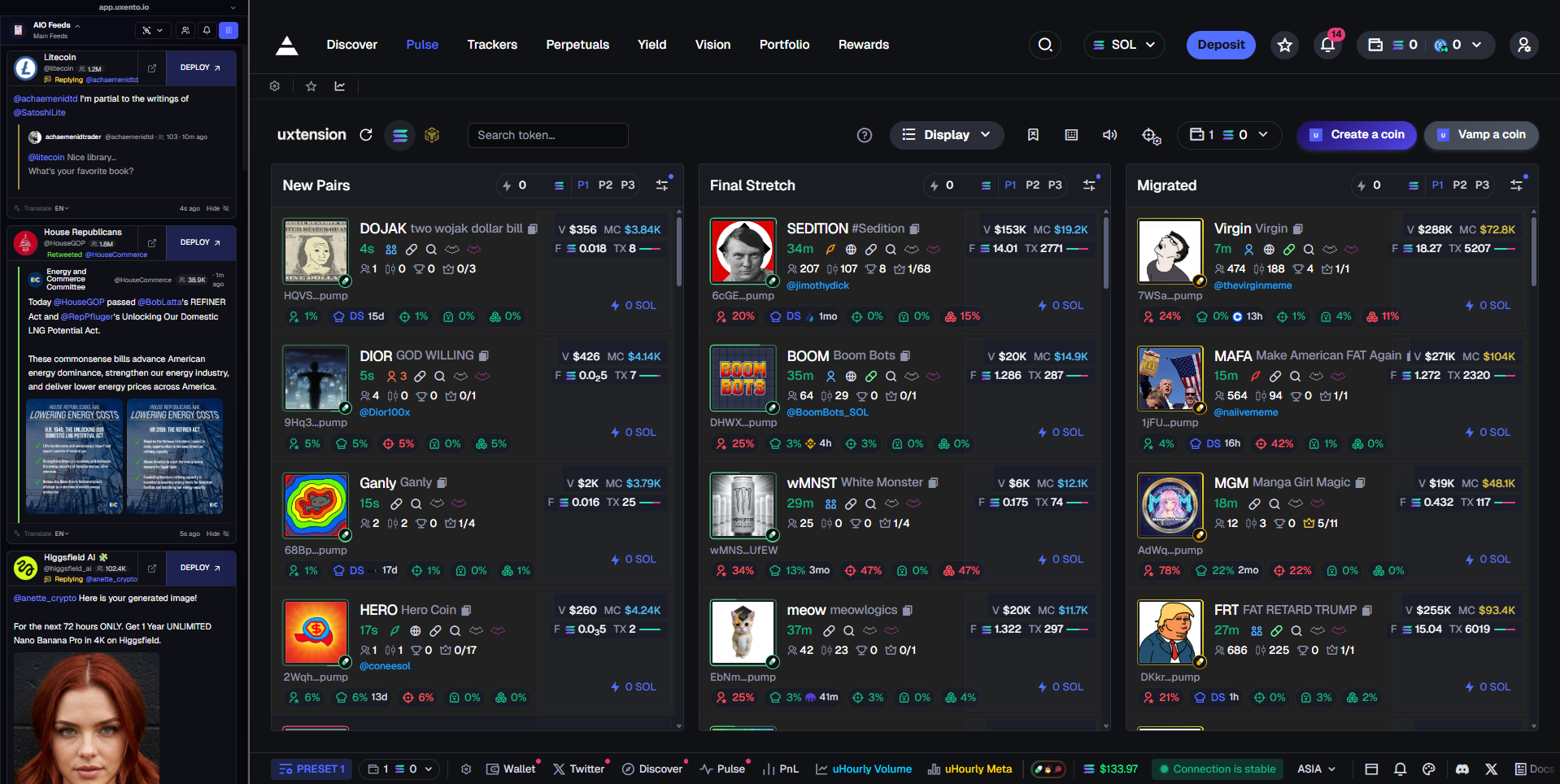
Uxento AIO allows you to easily sidebar Uxento Vision.
You can edit what you do or don’t want to see in AIO/Vision, by clicking the settings button, navigating to ‘Feed Accounts’ and ticking/unticking the filters provided.

Uxento Vision allows for up to 3 trackers to be selected at once, to view more enable Uxento AIO.
To get a more in-depth idea of how to use the AIO/Vision feeds efficiently, you can watch the below video:
Uxento Footer:
Section titled “Uxento Footer:”The footer of your uxento homepage houses a number of useful real-time shortcuts and real time price checks including:
Show/hide Deploy/Feed/Creation Panels
Access Coin Communities
Video Guides
Quick Fee Settings
Real time PumpFun Migration Market Cap
Real time SOL, ETH, MON, BNB Prices
Uxento Wallet
Tool Shortcuts
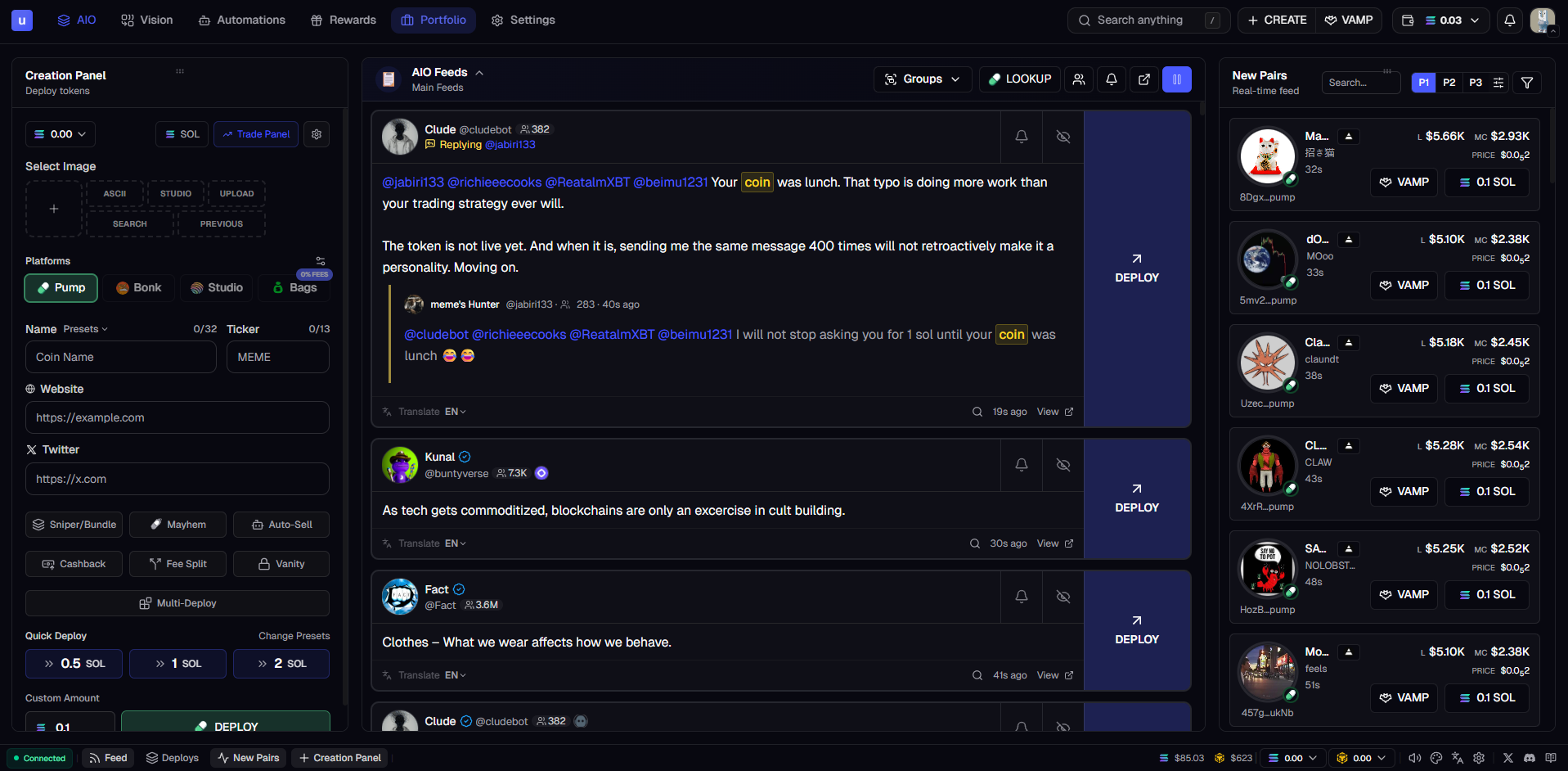
Deployer Mode:
Section titled “Deployer Mode:”Within the cards on your feed you will notice a ‘Deploy’ button in the top right of each card. Clicking this will bring up the uDev Creator Module where you can configure a token based on the original source.
By default, the Deploy button is enabled but you can Hide it, or change its look at any time via the Appearance panel in your settings.
UI Optimization:
Section titled “UI Optimization:”There are a number of additional UI panels that can be enabled to monitor alternative feeds and access developer tools. When active, these panels can be re-ordered and resized to suit your workflow.

AIO Feed with Additional Panels
These UI add-ons include:
Past Deployments:
Section titled “Past Deployments:”You may also bring up an overview of past deployments by clicking the Deploys button located in the bottom-left corner of your uxento homepage.
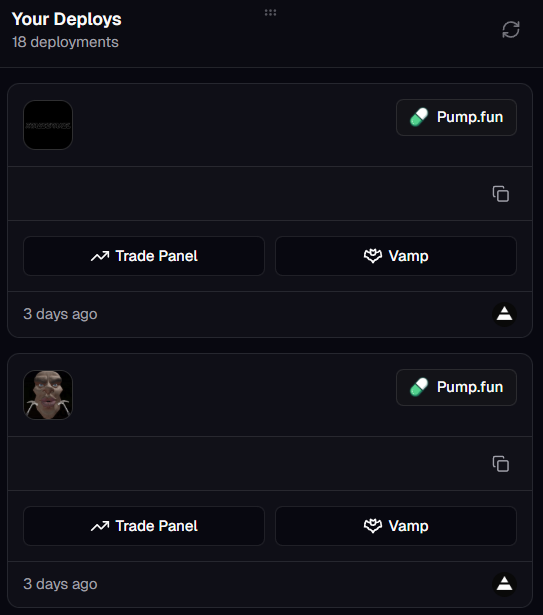
Deploys Button
Within the Deploys panel you can access the trades panel to execute trades or re-vamp the token.
Past Deployments Panel
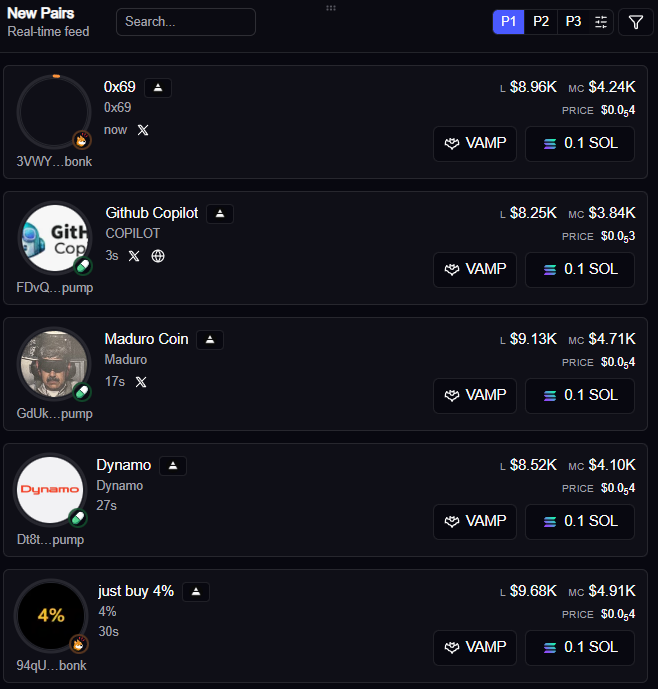
New Pairs Feed:
Section titled “New Pairs Feed:”You can access a real-time New Pairs feed to monitor newly launched tokens as they go live. This feed allows users to trade market entries as they appear and quickly Vamp coins with uDev.

New Pairs Feed
To view New Pairs, simply click the New Pairs button located in the bottom-left corner of your uxento homepage.
New Pairs Button
Creation Panel:
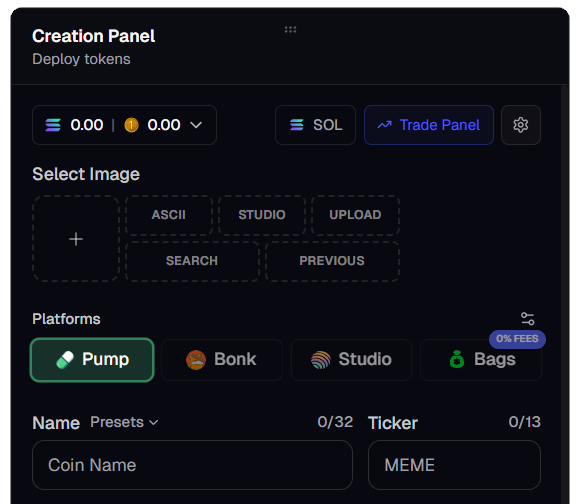
Section titled “Creation Panel:”You can enable an always-on uDev Creator Module, allowing you to easily launch coins from the AIO feed.

Creation Panel
To open the Creation Panel, simply click the Creation Panel button located in the bottom-left corner of your uxento homepage.
Creation Panel Button
To learn more about UI Optimization, you can watch the below video:
uChat:
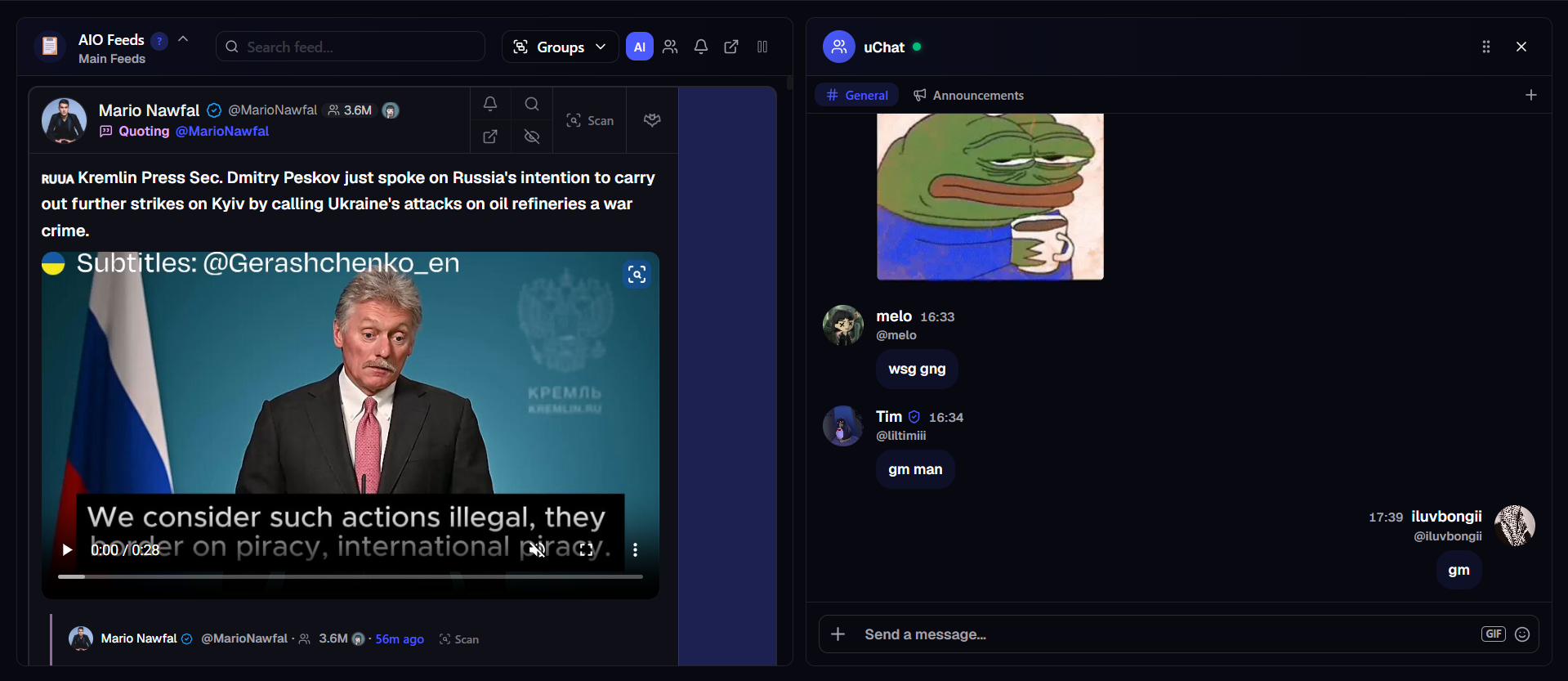
Section titled “uChat:”Like all things, Uxento Vision is more fun with friends. uChat is the social layer on top of uxento’s wide suite of tools featuring a real-time chat shared with the feed, docked next to your feed.
AIO Feed with uChat Panel Docked
With uChat you may:
Chat with other uxento users
Live messaging in public and private rooms. Pick a username, set an avatar and display name right from the chat.
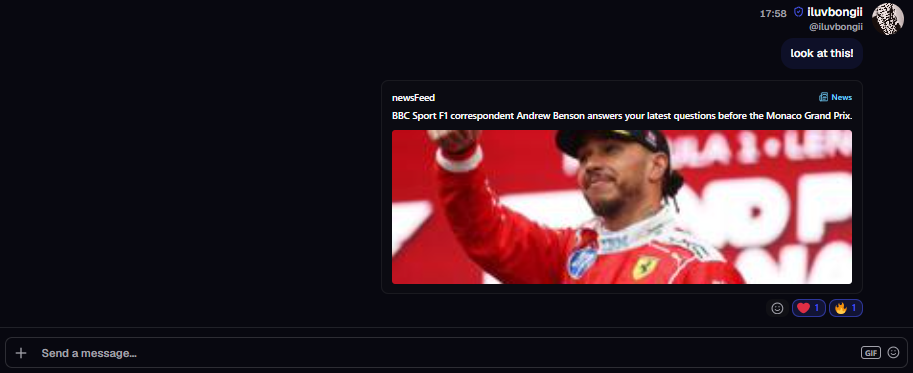
Share posts from the feed
One-tap Share to uChat on every feed card, tweet, coin and deploy. Posts arrive as rich feed cards with author, media and source preserved.
Private chats & invites
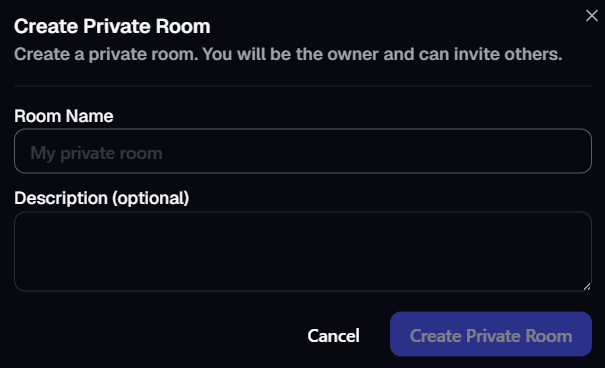
Create your own private rooms and invite people by username, request to join via room ID, or invite code.
Chat moderation
Multiple per-room moderation features including slow-mode, bans, requests and more.
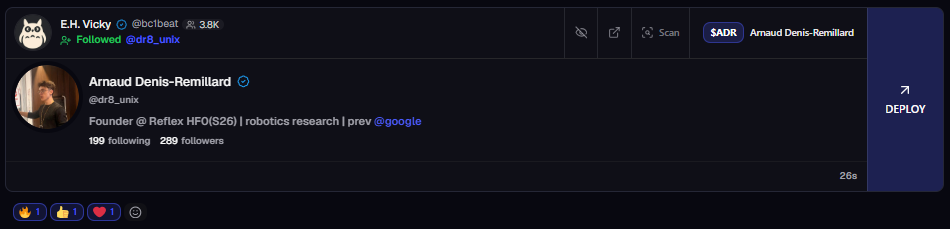
React to posts on the AIO feed
Drop emoji reactions directly on any AIO feed item, with a quick-bar of your most-used emojis and live-syncing counts.
To use uChat, simply send a message in the uChat panel to join the conversation. Before sending your first message, you will be prompted to set your display name and avatar however you may change your name and avatar at anytime, as well as enter privacy mode (to send messages anonymously) through your uxento Account Settings.
To create a private chat room, simply click the ’+’ icon in the uChat toolbar and select ‘Create Private Room’ from the drop down. Assign a name to your room and click ‘Create Private Room’.
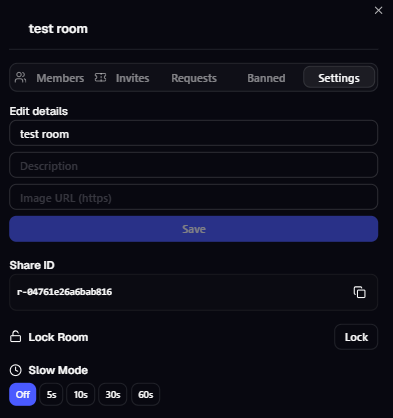
Once created, you may generate an invite code by clicking the ‘Manage Room’ icon and navigating to the invites tab. Click ‘Generate Invite Code’ to create a sharable code. You can edit your room, ban users, add slow mode and further manage your room via the same Manage Room settings in the uChat toolbar.

You can leave a private room at anytime by clicking the manage room icon and then selecting ‘Leave Room’ from the drop down.
Coin Communities:
Section titled “Coin Communities:”Coin Communities are the social layer for tokens on pump.fun. Every token gets a community where holders can post, like, and reply in real time. uxento has day one support for Coin Communities, allowing users to interact with communities in a range of ways from engaging directly with communities to real-time alerts on when new posts are made in tracked communities.
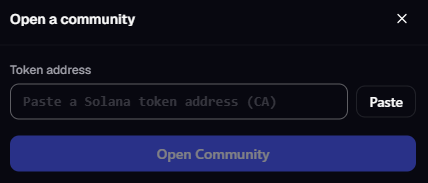
Coin Communities Button
To open any coin community, navigate to the top toolbar on your uxento homepage and click the Coin Communities button (located next to the Tweet button). Input any Solana CA to open their corresponding Coin Community.
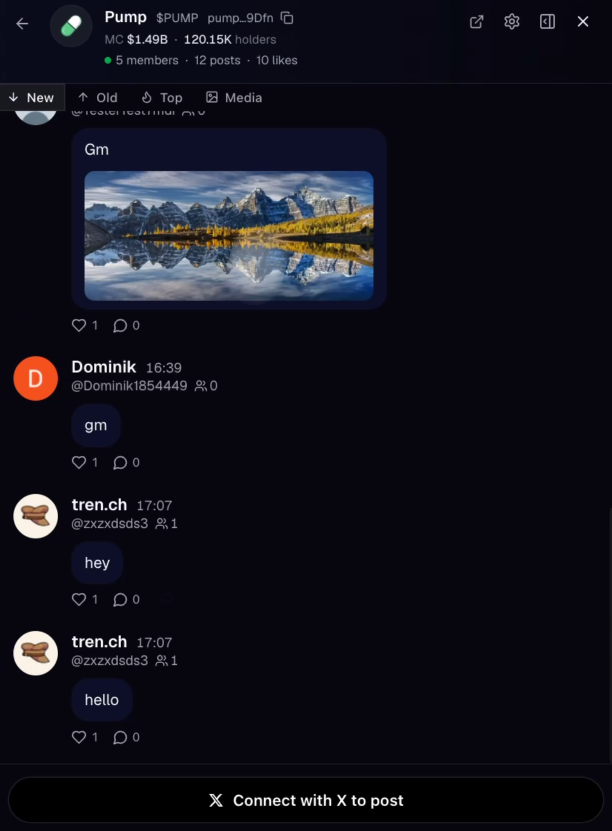
In the community panel, you can view a feed of all posts made to that community, dock the panel to side view, and click-off to view the community page on coincommunities.org. To participate in any community, you must connect with an X account and own at least $8 worth of the token.
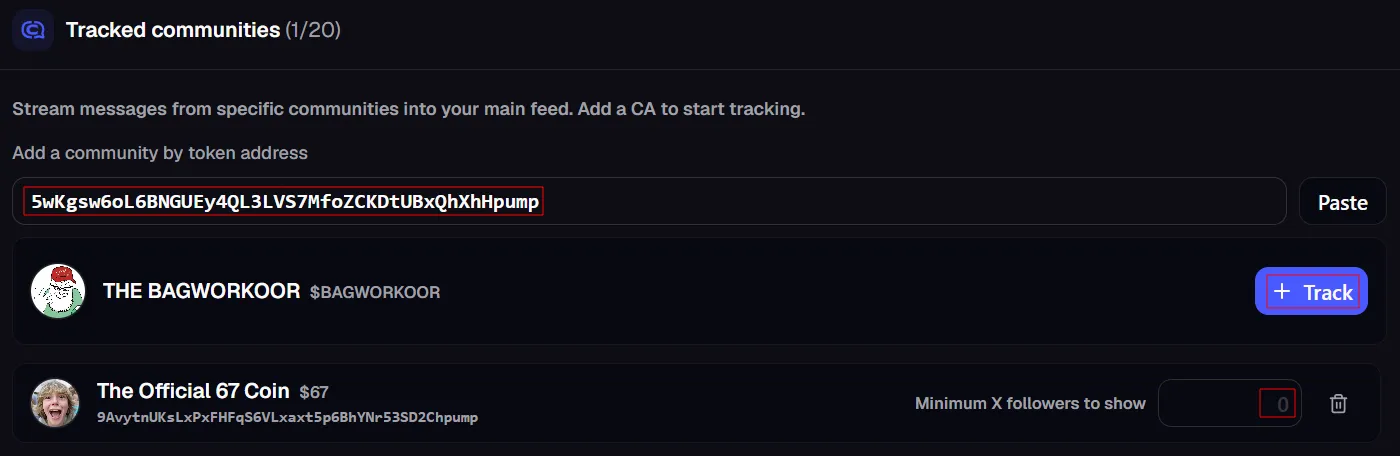
Coin Community Panel
To add any community to your Vision/AIO tracker simply visit the Tracker Settings and navigate to the ‘Tracked Communities’ panel; input any token address and click Track to begin monitoring posts from that community. You may also adjust the minimum followers required by an X account to display posts in their feed via the settings.
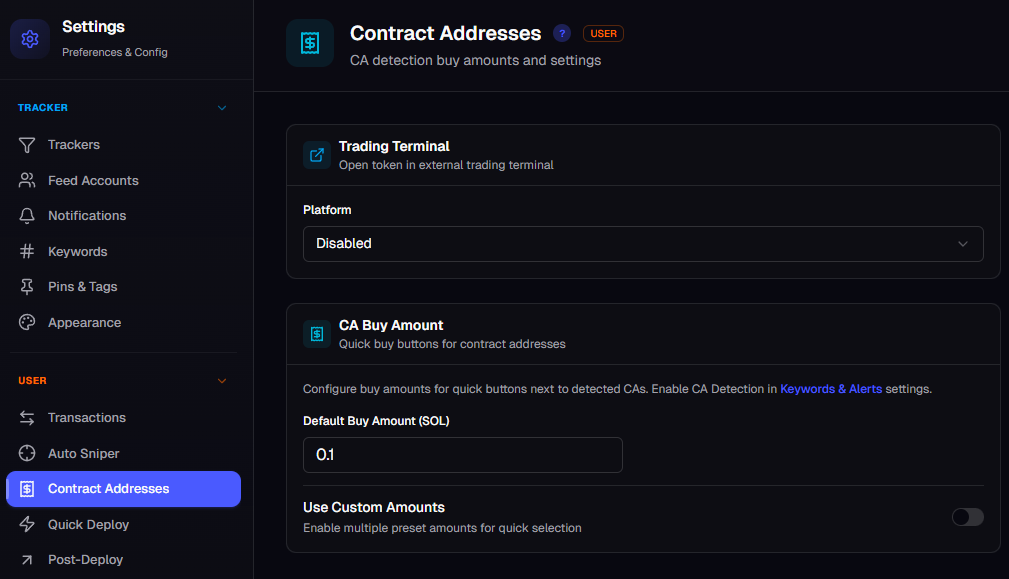
Contract Addresses:
Section titled “Contract Addresses:”You may configure certain settings relevant to the way you interface with detected Contract Addresses in Uxento Vision/AIO. To do so, visit the ‘Contract Addresses’ panel within the User Settings where you may configure the default trading terminal you wish to open tokens in on-click, as well as quick buy buttons for displayed contract addresses.
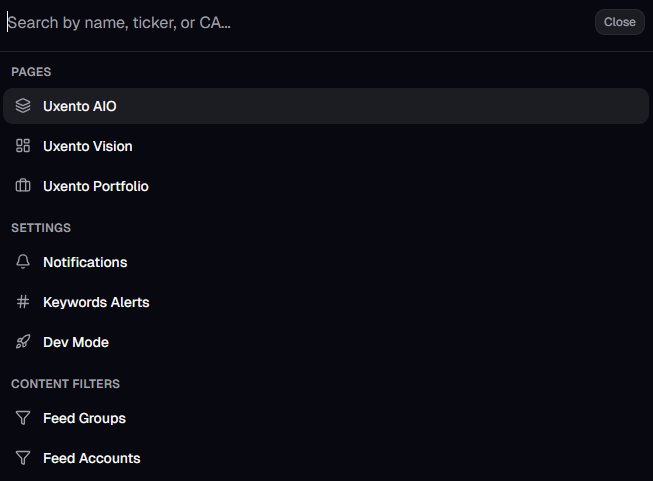
Search Anything:
Section titled “Search Anything:”You may use the ‘Search Anything’ function located at the top of your uxento homepage to find any tool, setting or page in uxento and more efficiently refine your settings. You can also search for coins using name, ticker or CA.
You may also click ’/’ on your keyboard to quickly open the search panel.

AIO Search Button
Pause Feed:
Section titled “Pause Feed:”You can easily pause your All-In-One/Uxento Vision feed for better readability by hovering your mouse over the feed.
Enabled by default, this can be disabled/re-enabled by clicking the ‘Pause’ button located on the top right of your Feed.
Pause over hover Button
Scan Username:
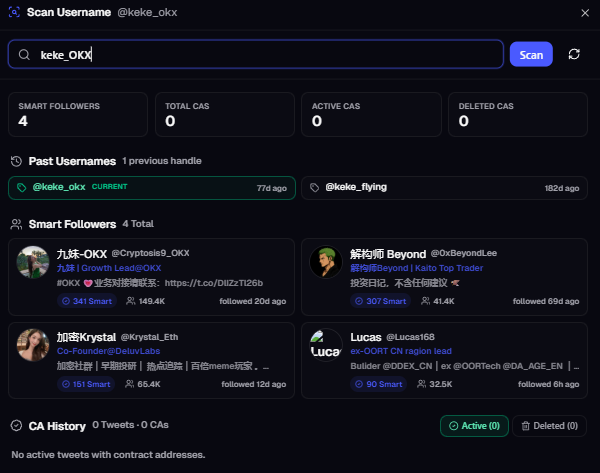
Section titled “Scan Username:”Next to any X/Truth post that appears on your feed, you may click the ‘Scan’ button to get a breakdown of the post author’s background including past usernames, smart followers and CA history (tweets with contract addresses).
Scan Username
Pins & Tags:
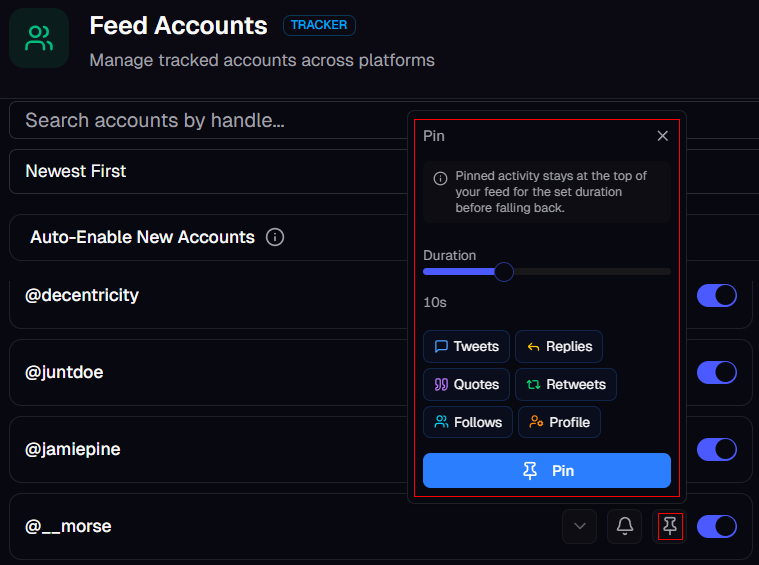
Section titled “Pins & Tags:”In addition to the Pause-on-hover function, you may also add accounts which are pinned to the top of the feed for a specified amount of time whenever detected. To configure, simply navigate to the Feed Accounts panel in the Tracker settings and click the Pin icon next to the desired account; you can then customize which activities will trigger pinning as well as the duration they are pinned for.
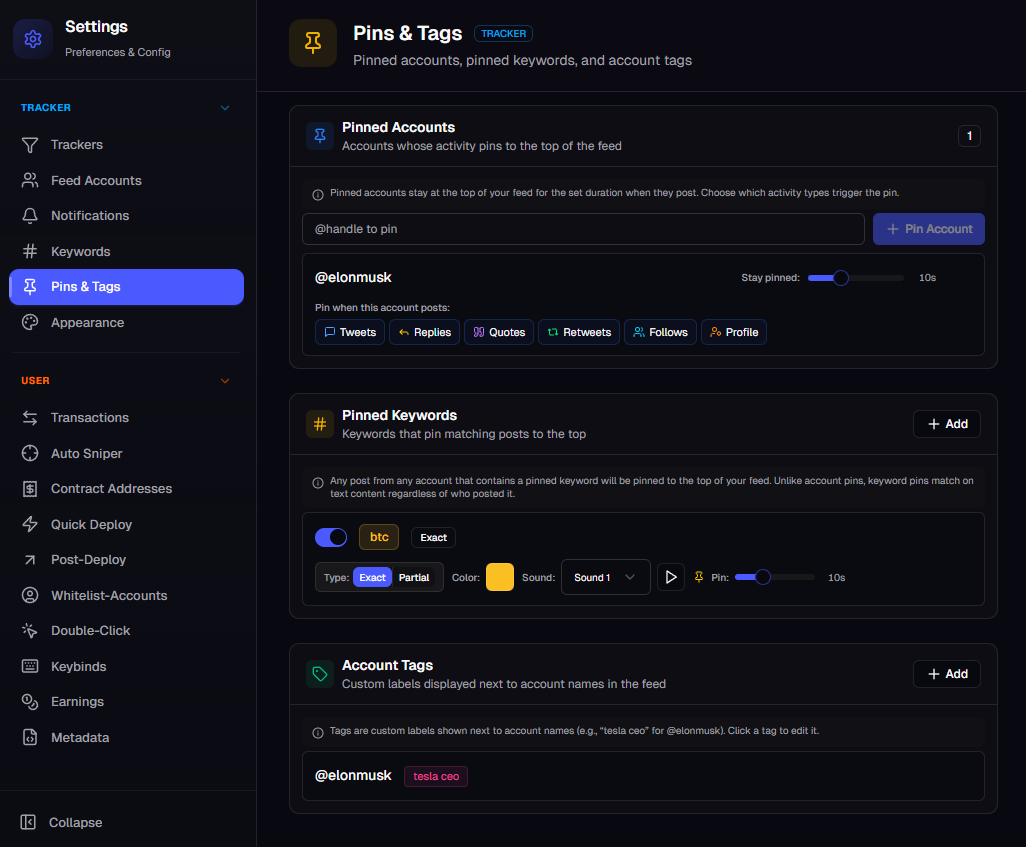
You can also view all Pinned Accounts as well as further configure Pin and Tag settings via the Pins & Tags panel in the Tracker Settings. In addition to Pinning Accounts on post detection, you may also pin certain Keywords on detection (with partial/exact match logic) as well as Tag Accounts with custom labels. To set either, simply click the Add button under the respective panel and set your desired configurations.
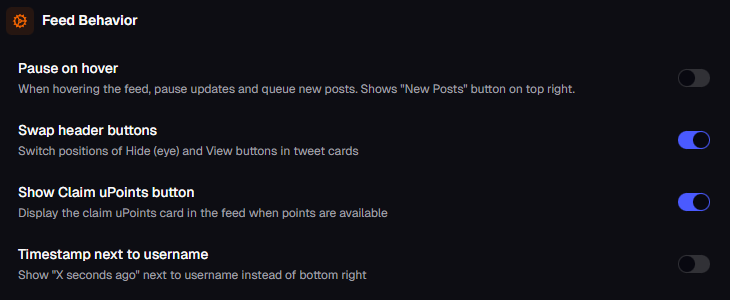
Feed Behavior:
Section titled “Feed Behavior:”You can further customize certain feed behaviors via the Tracker settings under the Trackers panel.
Translate Content:
Section titled “Translate Content:”Uxento Vision contains a built-in translator for users to easily translate posts into their native or preferred language.
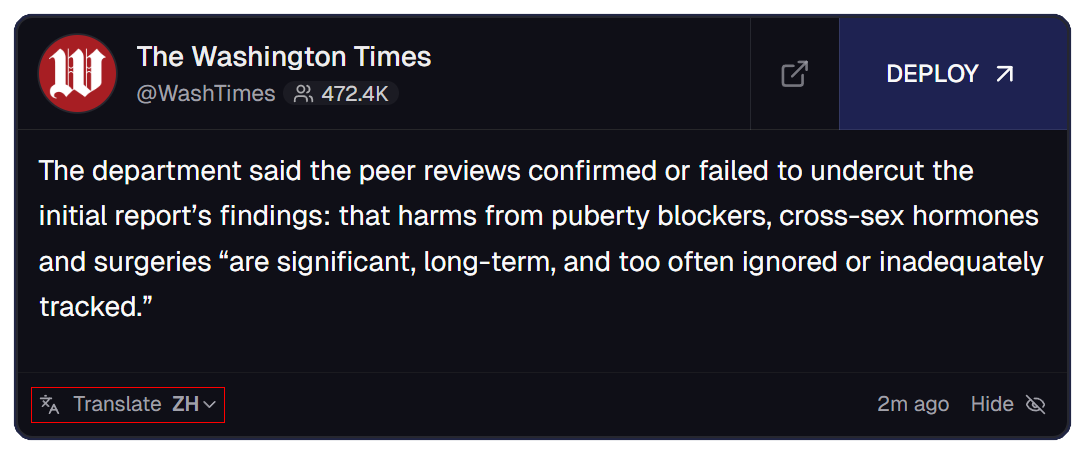
By default, Auto-Translate is turned on to ensure that any posts made in non-english are translated automatically. You may toggle this via the Tracker settings under the Trackers panel.
You may also translate any post, simply click the Translate button located at the bottom left of any post in your feed. You can refine which language you wish to translate into by clicking the drop-down next to the Translate button and choosing from 1 of 13 languages.
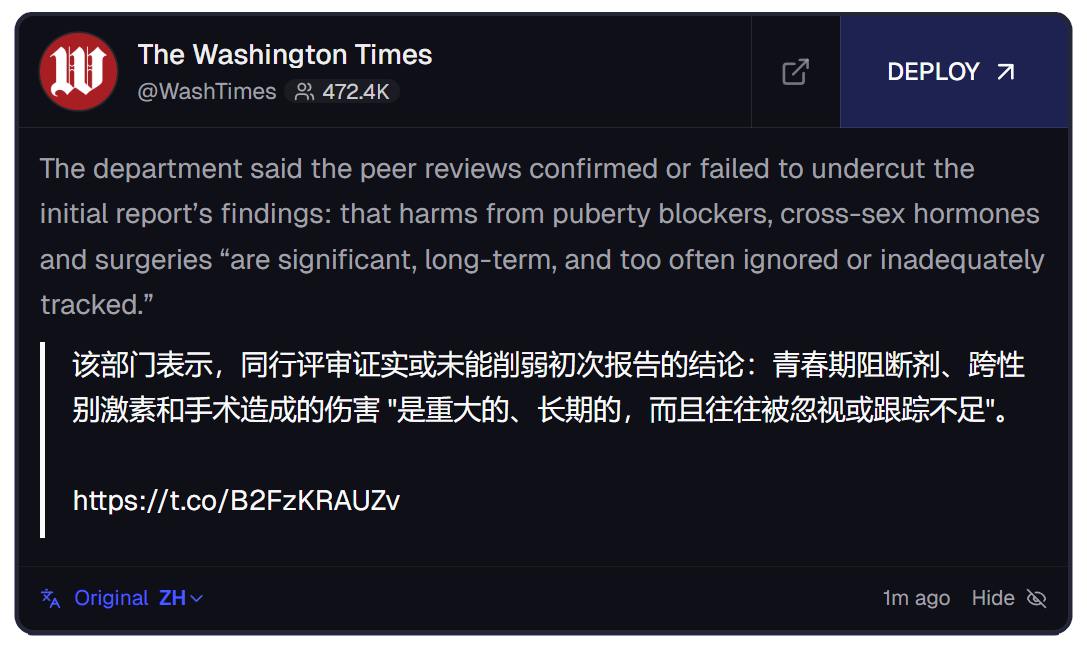

You may also have your entire homepage and feed translated into one of 13 languages by enabling Global Auto Translation with the translate button in the bottom right of your homepage and selecting which language you prefer.

PumpFun Lookup:
Section titled “PumpFun Lookup:”The AIO feed also has a quick access PumpFun Lookup button that allows you to search any wallet address or username to see an overview of what coins they have previously deployed via Pump.
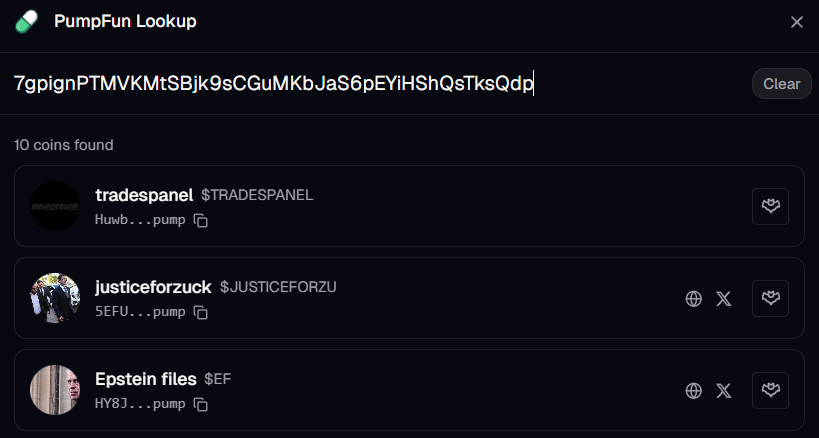
You can then use the quick buttons to visit their relevant links or Vamp them.
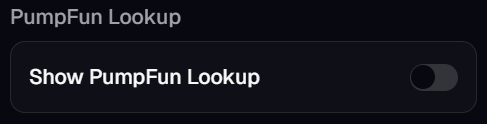
You can turn on the PumpFun Lookup feature by toggling on ‘Show PumpFun Lookup’ in your Appearance settings.
Notification Sounds:
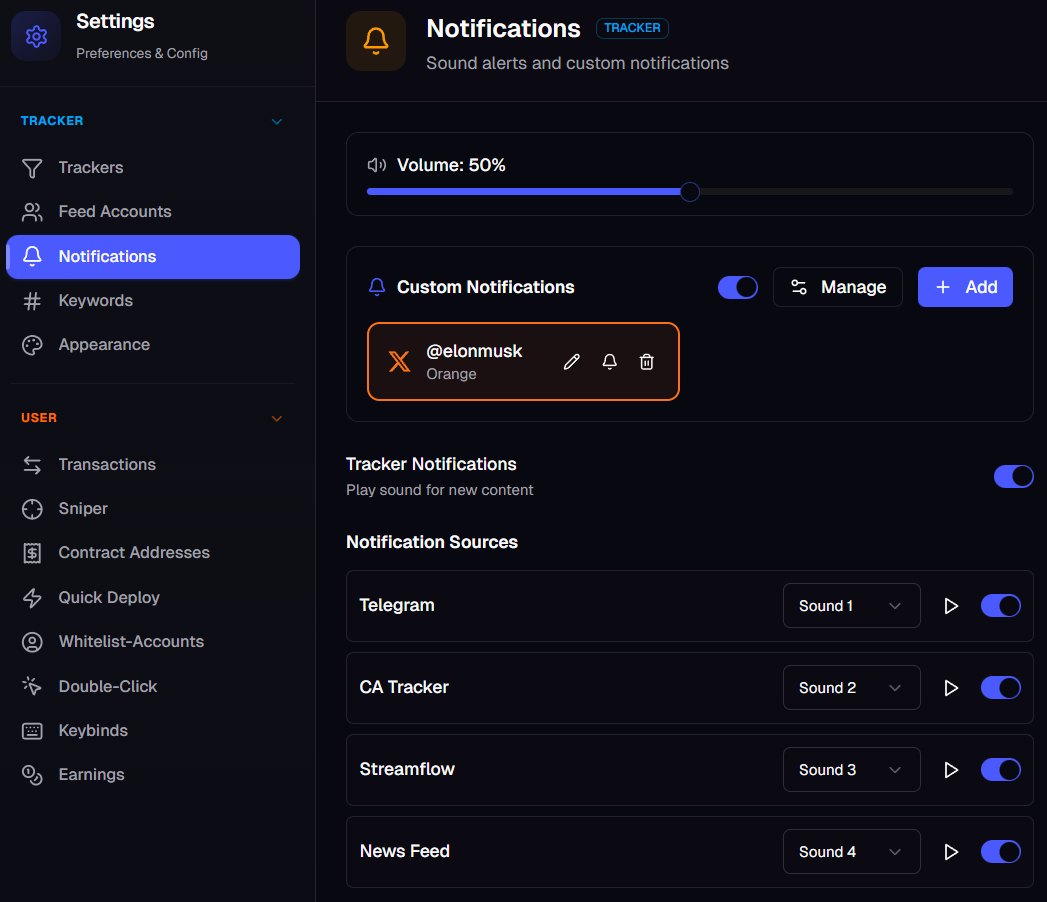
Section titled “Notification Sounds:”You can easily enable Notification Sounds within Uxento Vision to ensure you never miss a play. To do this, click the Settings button in Uxento Vision, click into the ‘Notifications’ panel via the Tracker settings and then configure as desired.
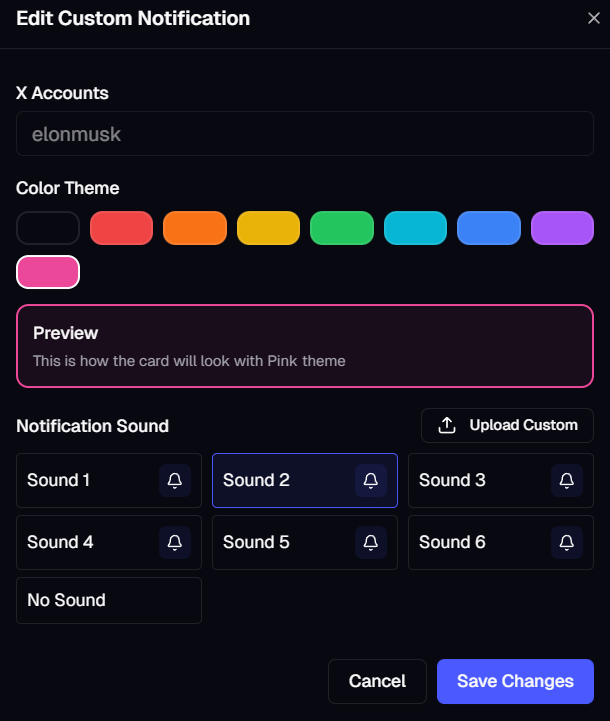
You can then choose to enable one of up to 6 unique sounds to play whenever one of the trackers receives alpha. Additionally, you may set custom notifications for certain accounts. Simply add any tracked username and click ‘Manage’ to configure settings as desired. You can set more custom notifications for other trackers/events via the Appearance panel.
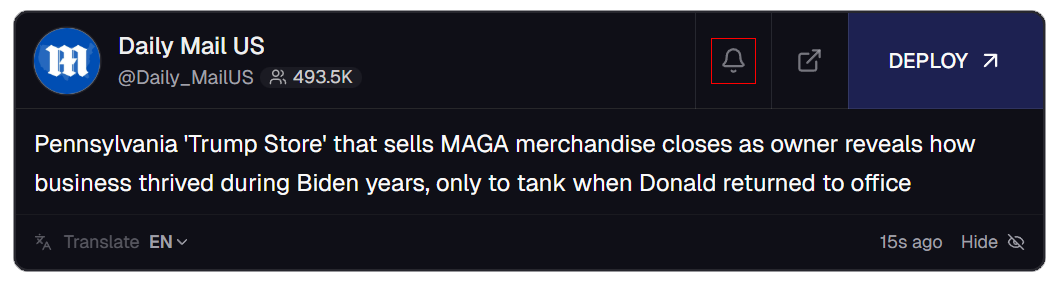
Manage notifications directly from X cards in your feed.
To learn more about how to configure notifications for your Vision/AIO feed, you can watch the below video:
Keyword Alerts:
Section titled “Keyword Alerts:”You may also get highlighted alerts and custom sounds when specific keywords appear in your feeds.
To set this up, simply navigate to the Settings pane, and click on Keywords. Under this panel you can add:
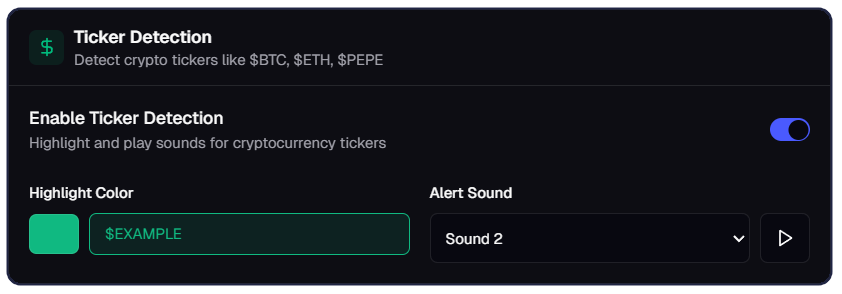
Ticker Detection: Automatically detects and highlights any cryptocurrency tickers such as $BTC, $ETH, $PEPE.
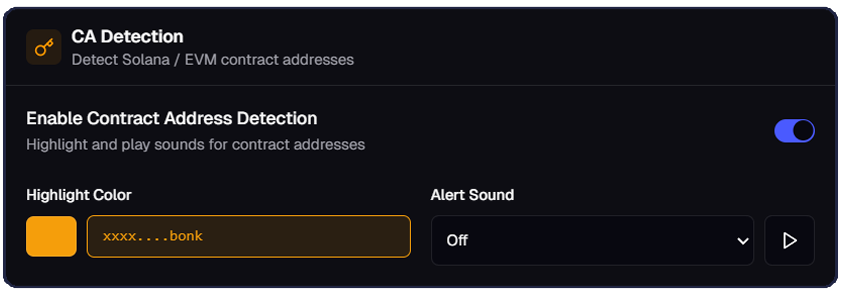
CA Detection: Automatically detect and highlight any posted Solana contract addresses.
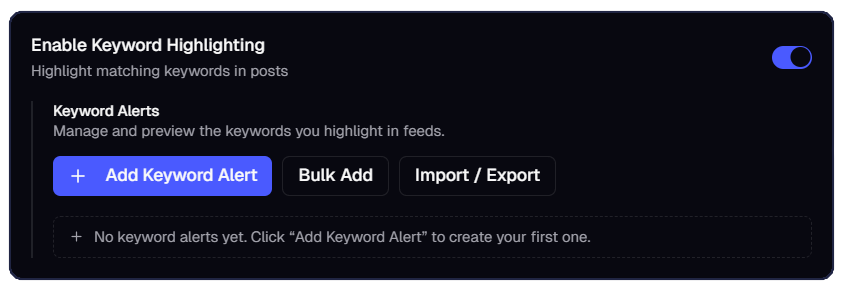
Keyword Alerts: Create custom alerts for specific words or phrases in your feeds.
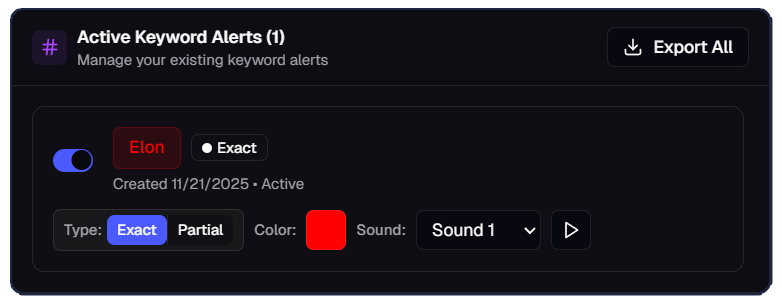
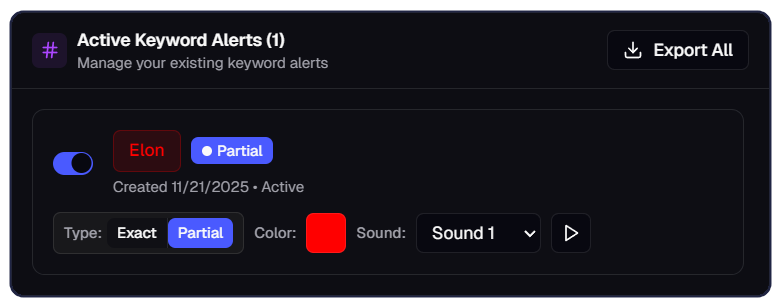
Each parameter can be set up with custom sound/color alerts to ensure you don’t miss a single thing. Additionally, you may also refine whether you want Keyword Alerts to apply for Exact or Partial phrases.
Exact = The word has to be by itself for it to detect it as a keyword (e.g. “Elon”).
Partial = The word can be within other words and will still detect the keyword in it (e.g. “Elongate”).
Simply select which type of alert you wish to set, by clicking Exact or Partial.
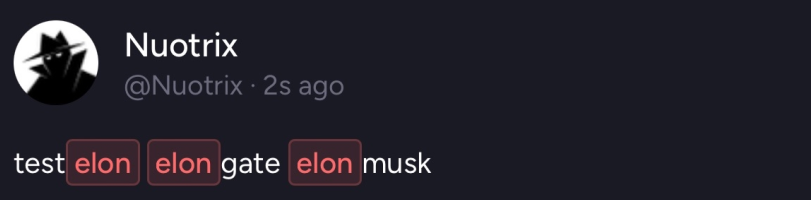
Partial Keyword Highlighting
To learn more about how to configure Keywords for Vision/AIO, you can watch the below video:
Profile Customization:
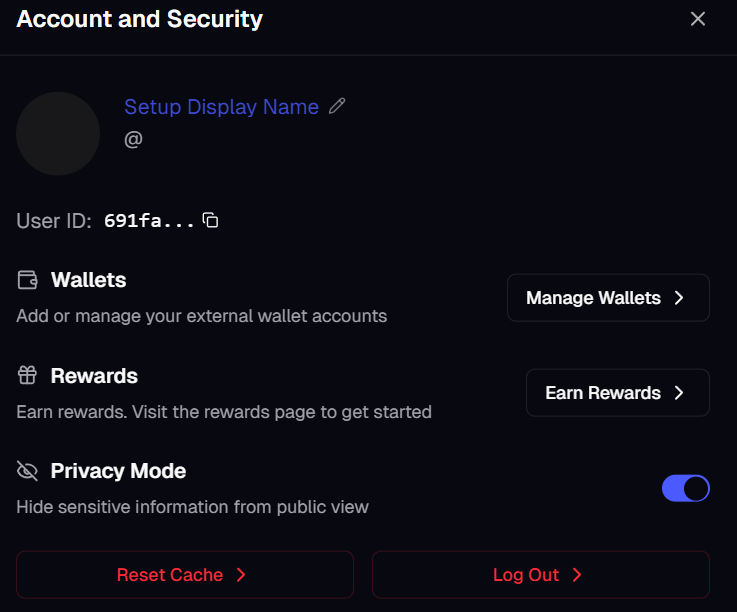
Section titled “Profile Customization:”Within the settings menu under the Account and Security section, you may further customize your Uxento Vision/uDev profile as well as manage the wallets associated with your account (via Portfolio), track Rewards and enter Privacy Mode (hides sensitive information from public view).

Themes/Appearance:
Section titled “Themes/Appearance:”You may customize your uxento homepage at any time with Themes. Just click the Themes button on the bottom right toolbar and choose from six preset styles, or create your own custom theme.
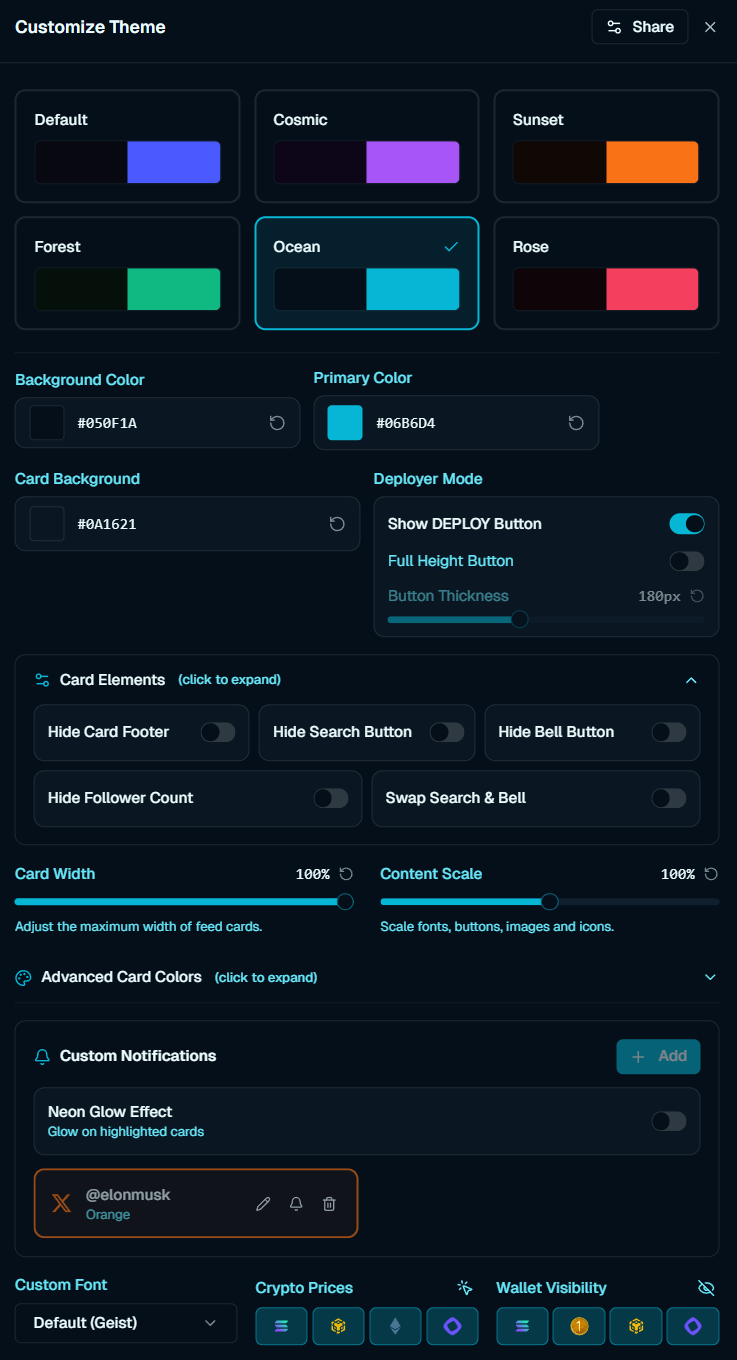
Themes Button
Additional options are also available, including font settings, feature visibility, and X-post appearance controls.
You may also entirely customize your uxento Card Elements by resizing card width/content scale or hiding any specific feature of the Card’s UI.
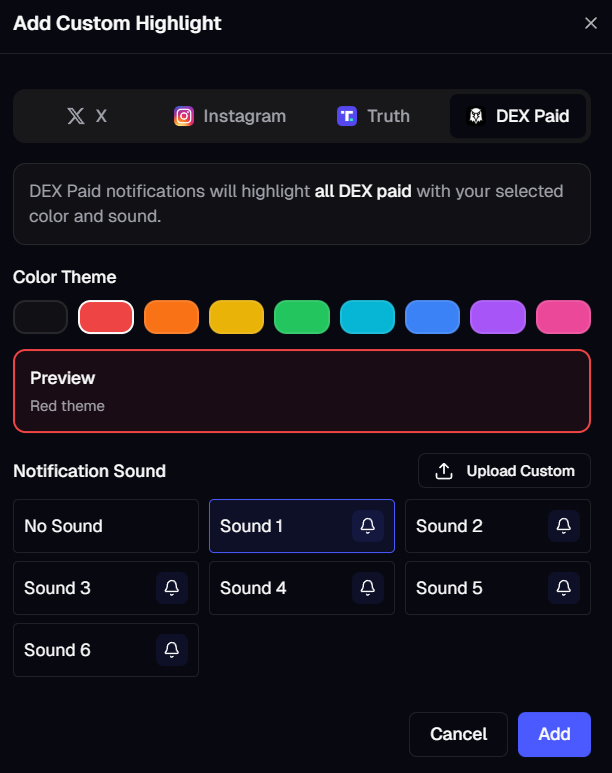
Additionally you may set custom notifications and highlights for specific accounts within X, Truth Social, Instagram as well as Dex Paid events. Use the ‘All’ button to make it for all events within those trackers.
These settings may also be accessed via the Appearance panel under the Tracker settings.
To learn more about the Appearance panel, you can watch the below video:
U8 (Uxento Infinity):
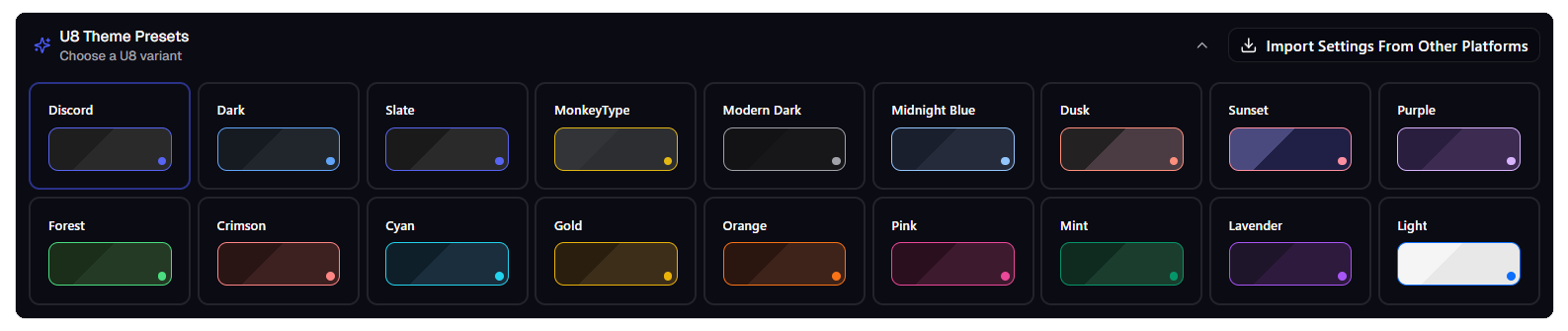
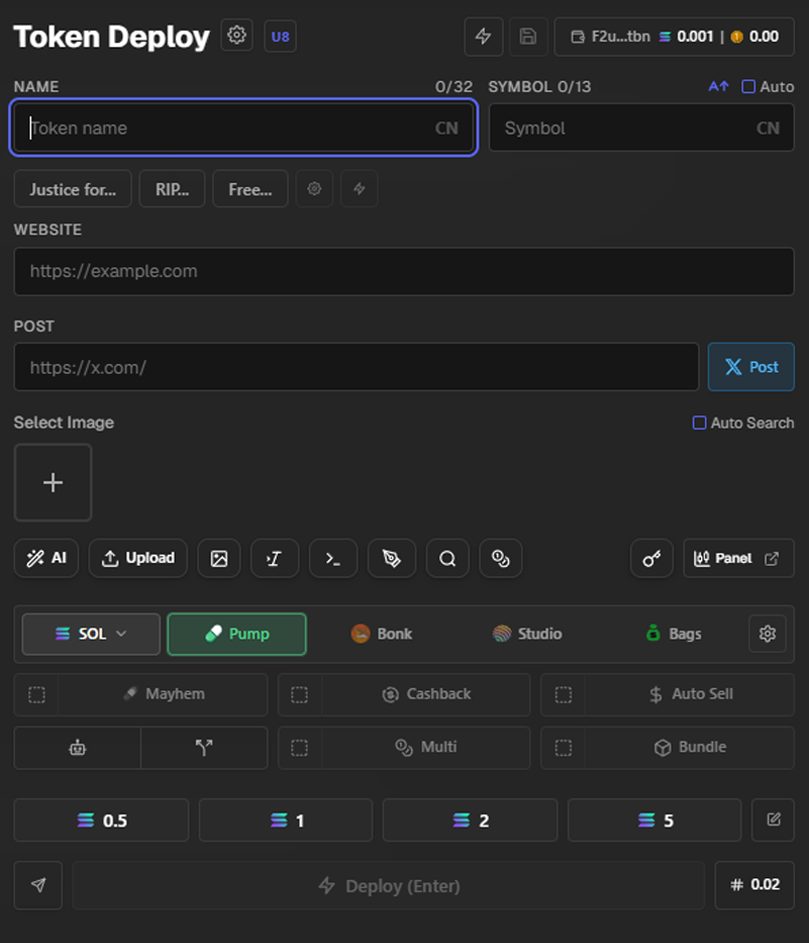
Section titled “U8 (Uxento Infinity):”In addition to the numerous themes and UI adjustments you can make to you uxento trackers, you may also re-skin the entire app (including the coin creation panel), and universally import settings from other launch platforms (such as J7, Rapid etc).
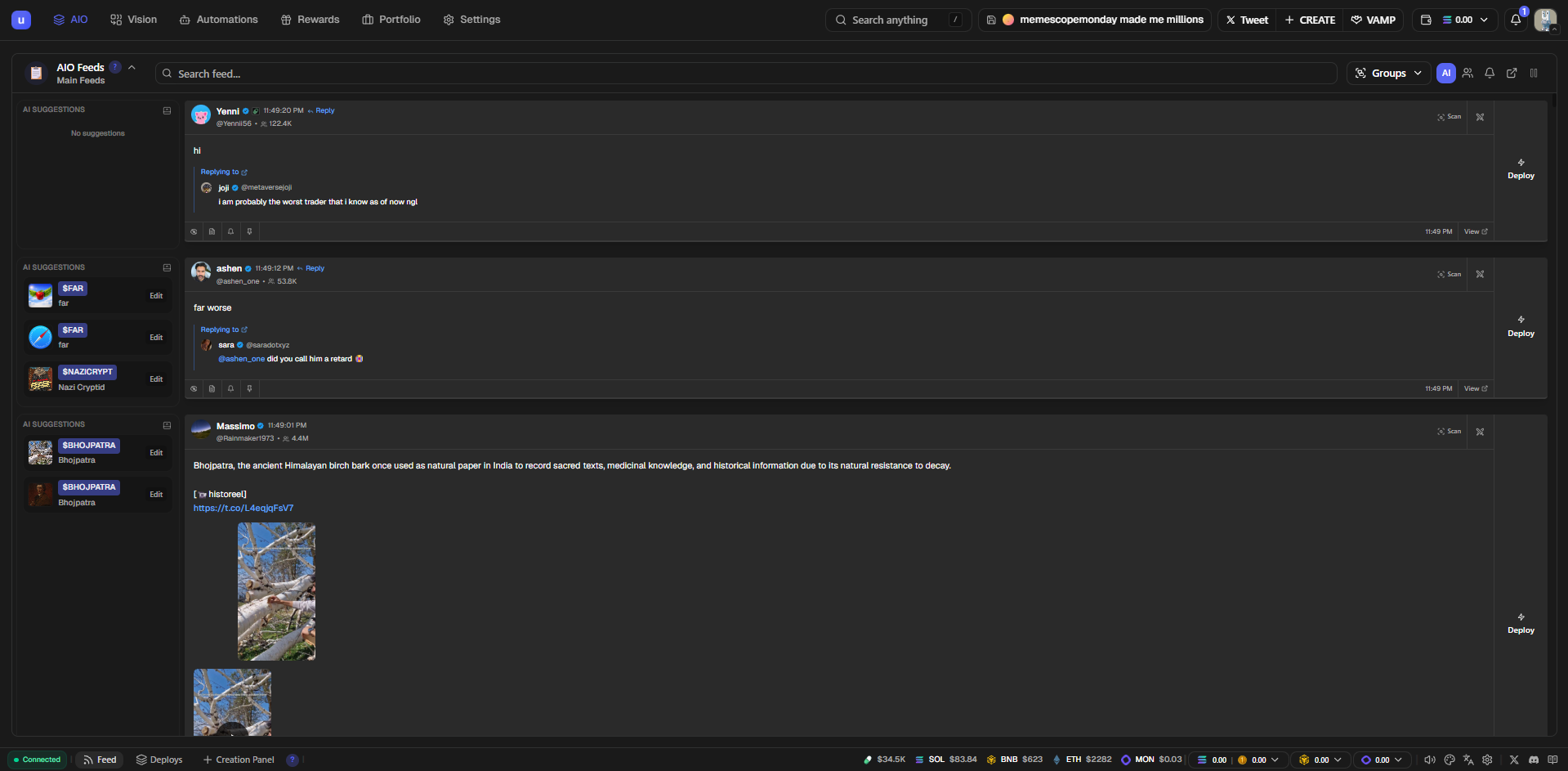
To use any of the 18 available U8 presets, simply navigate to the Appearance tab within the Tracker Settings and adjust your theme under the panel. Additionally, you may import a JSON file of settings from other platforms by using the import button.
U8 Presets
AIO Feed with U8 ‘Slate’ Applied
U8 Creator Module
U8 Presets can also be changed at anytime via the Appearance quick settings on your homepage.